Need to do this yourself? Merge PDF is available directly in your browser.
Combine scanned pages, photos, and document images into one organized PDF in the correct page order.
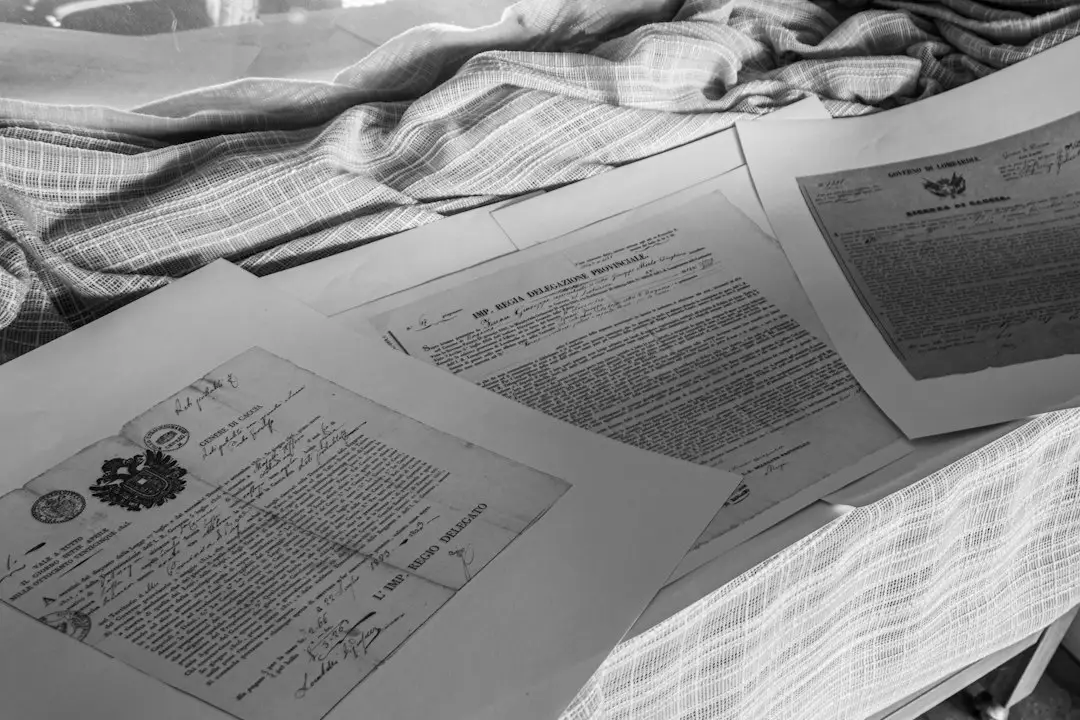
Scanned documents often begin as separate images or PDF files. Combining them into one PDF makes the document easier to email, archive, print, and share. The key is to place the pages in the correct order before saving. Use an image-to-PDF workflow for JPG or PNG scans, and a PDF merge workflow when the pages are already PDFs.
How to combine scanned pages into one PDF
- Open the Images to PDF tool or the appropriate PDF merge tool.
- Add the scanned images or PDF pages.
- Arrange the pages in the correct order.
- Create the combined PDF.
- Open the final file and check every page.
Combine scanned images into one PDF
If your scanner saves pages as JPG or PNG files, an image-to-PDF workflow can place each image on its own PDF page. This is useful for receipts, forms, handwritten notes, and photographed documents.
Combine multiple scanned PDFs
If every scan is already a PDF, use a merge workflow instead. You can combine files in the required sequence and create one continuous document.
How to keep scanned pages in the right order
- Rename files with numbers before uploading.
- Preview thumbnails before merging.
- Check portrait and landscape orientation.
- Rotate sideways pages before finalizing.
- Review the final PDF from first page to last.
Should you use OCR after combining scans?
If you need to search or copy text from the finished scan, run OCR on the combined PDF after creating it. OCR can add a searchable text layer while preserving the visible scanned pages.
Combine scanned pages for free
Use FreePDFTools for image-to-PDF workflows or Merge PDF when your scanned pages are already PDF files.
Explore Topics
Try the PDF tool from this guide
Merge PDF — use the free browser-based tool without leaving this site.