Need to do this yourself? Rotate PDF is available directly in your browser.
Fix sideways or upside-down PDF pages, rotate selected pages, and save the corrected orientation permanently.
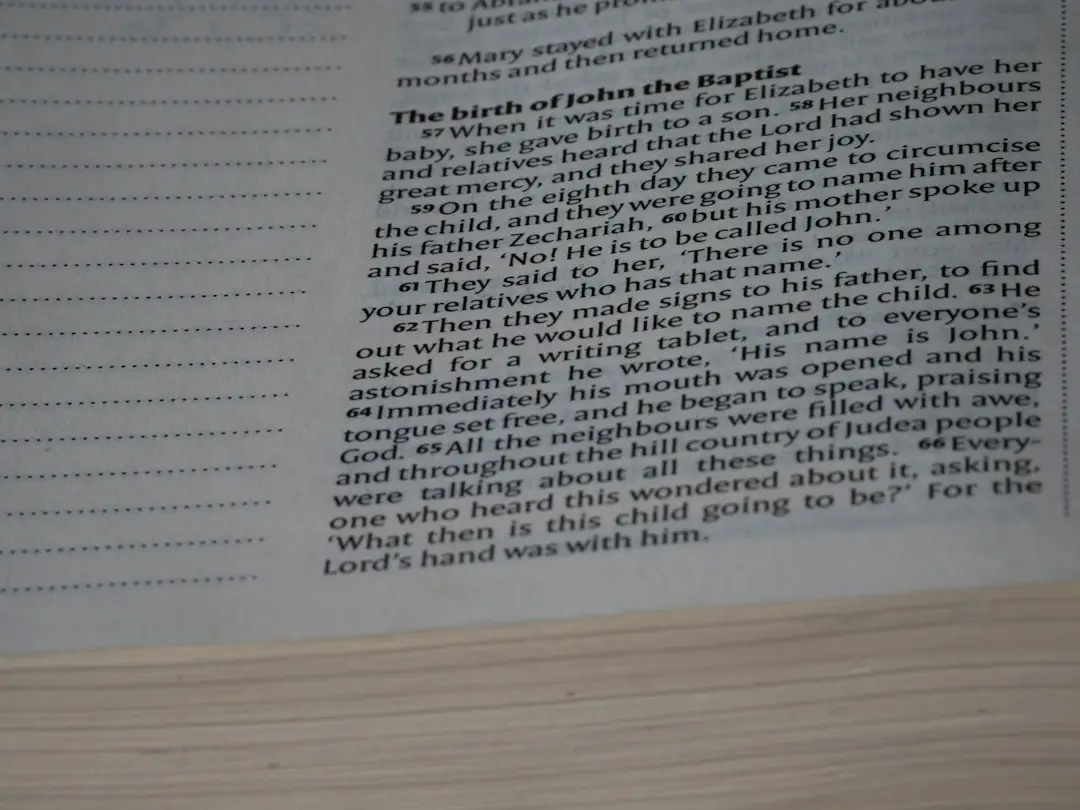
A PDF can appear sideways after scanning, photographing, or combining pages from different sources. Rotating the page view in a viewer may be temporary; if you need the correction to remain when the file is opened elsewhere, save the rotation into a new PDF.
How to rotate a PDF permanently
- Open the Rotate PDF tool.
- Select your PDF.
- Select the pages that need rotation.
- Choose 90, 180, or 270 degrees as supported.
- Apply the rotation and download the saved PDF.
Rotate one PDF page
If a document contains unwanted or duplicate pages as well as an orientation problem, you can remove those pages before saving the final version.
Select only the sideways page when the rest of the document is already correct. This is common with scanned forms, receipts, and mixed-orientation reports.
Rotate all PDF pages
If every page was scanned sideways, rotate the whole document at once. Preview the result before downloading so you can confirm the reading direction.
Rotate selected PDF pages by page number
For mixed documents, use page selection to rotate only the affected pages. This avoids changing pages that already have the correct orientation.
Rotation troubleshooting
If a page still appears sideways after downloading, open the saved file in another PDF viewer to distinguish a temporary viewer rotation from a change saved in the document. If only some pages are wrong, rotate those pages rather than applying the same direction to the entire file. Check pages with landscape tables or diagrams carefully because they may be intentionally oriented differently.
Frequently asked questions
Why is my scanned PDF sideways?
Scanners and phone cameras can capture pages in the wrong orientation. Rotating the affected pages fixes the reading direction.
Does rotating a PDF change its content?
Rotation changes page orientation; it does not normally rewrite the text into a different language or format.
Rotate and save your PDF
Use FreePDFTools Rotate PDF to fix sideways pages and create a corrected PDF.
Explore Topics
Try the PDF tool from this guide
Rotate PDF — use the free browser-based tool without leaving this site.