Scanned PDFs can become large because every page may contain a full-page image. Compressing a scanned PDF can reduce storage and upload size while keeping the document usable. Quick steps: open the Compress PDF tool, select the scanned file, run compression, and inspect several pages—especially small text, signatures, stamps, and faint marks—before using the smaller copy. Keep the uncompressed original. For mobile compression, see how to compress a PDF on iPhone without losing readability.
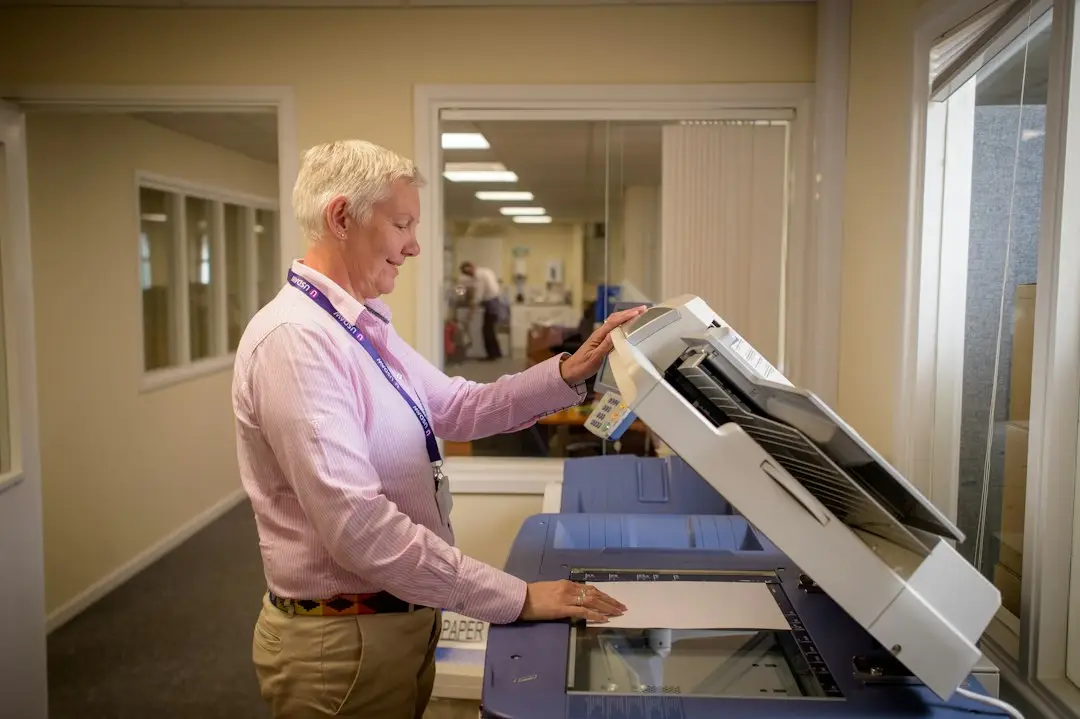
How to Compress a Scanned PDF
- Open the Compress PDF tool.
- Select your scanned PDF.
- Run the compression workflow.
- Review the resulting pages for text clarity and image quality.
Why Scanned PDFs Are Large
Unlike text-first PDFs, scans store page content primarily as images. Resolution, color depth, and the number of pages can therefore have a major effect on file size.
Compression Checklist
Scanned PDFs need a little more care than text-based documents because reducing image resolution or color information can blur letters and fine marks. Compare several representative pages—including the faintest text and the page with the smallest print—instead of checking only the first page.
- Check small printed text.
- Inspect signatures and stamps.
- Review diagrams and photos.
- Confirm that every page remains present.
Why scanned PDF compression can be tricky
Scans may contain faint text, stamps, handwritten notes, or signatures that are harder to read after image optimization. Review the page with the smallest text and the page with the weakest contrast. If a scan is already black-and-white and compact, further compression may provide little benefit.
If the file needs to remain evidence or an official record, keep an untouched original and use the compressed copy only when its readability is acceptable for the intended purpose.
More PDF Help
If you create PDFs from images first, read how to convert multiple JPG images to one PDF.
See also: how to reduce PDF file size without losing readability, how to compress a PDF without losing quality, and the Compress PDF tool. If only some pages matter, extract those pages before compressing.