Need to do this yourself? PDF to PowerPoint is available directly in your browser.
Turn PDF pages into a PowerPoint presentation for editing, presenting, and reusing document content.
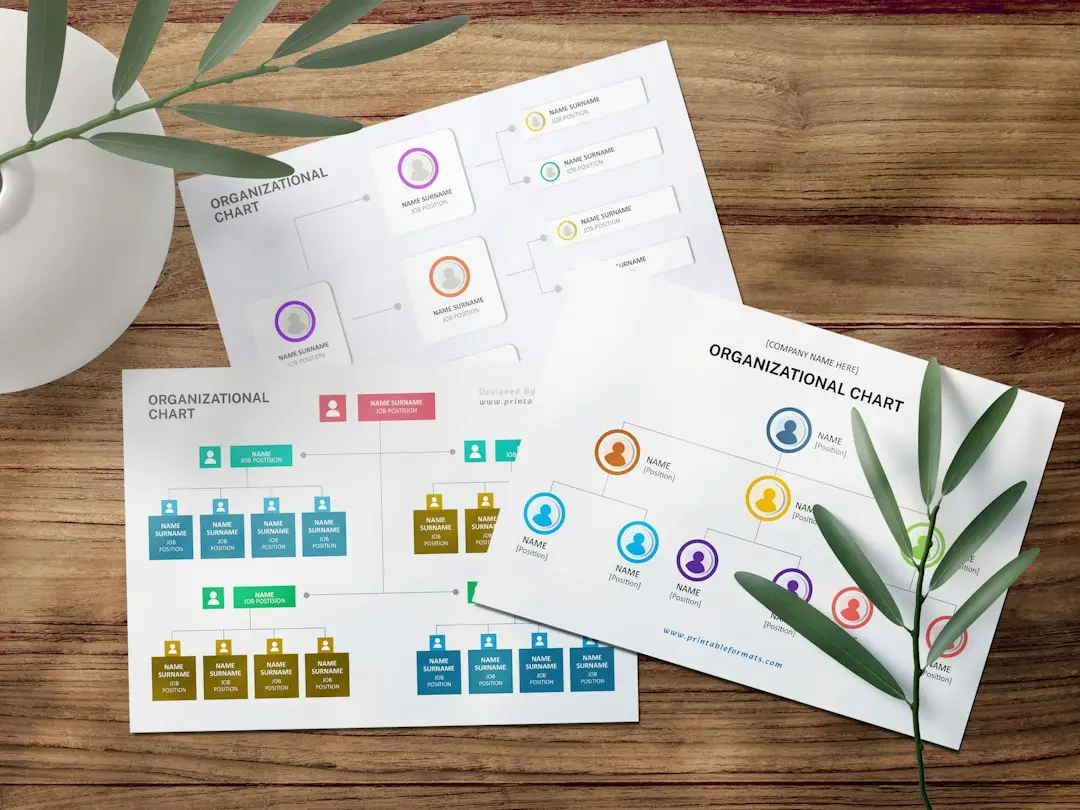
Converting a PDF to PowerPoint can help when you need to present information, reuse slides, or move content into a presentation workflow. The result depends on whether the source PDF contains editable text, images, or complex page layouts. Some conversions preserve appearance by making slides page images, while others attempt to reconstruct editable elements.
How to convert PDF to PowerPoint
- Open the PDF to PowerPoint tool.
- Select your PDF.
- Start the conversion.
- Download the PowerPoint file.
- Open the presentation and review every slide.
What does PDF to PowerPoint conversion do?
For a text-heavy PDF, you may want an editable presentation. For scanned pages, OCR can help create searchable text first; see how to make a scanned PDF editable with OCR. If the source contains tables, PDF to Excel may be more appropriate.
A converter attempts to turn PDF pages into presentation slides. Depending on the conversion method, each page may become a slide image or the content may be reconstructed as editable elements.
Why can PDF to PowerPoint formatting change?
PDFs preserve final page appearance, while PowerPoint uses editable slide objects. Text boxes, fonts, charts, tables, images, and spacing may therefore move during conversion.
How to improve PDF to PPT results
Check whether the output contains editable text and shapes or whether each slide is essentially a page image. Those results are not interchangeable: image-based slides may preserve appearance but offer little editing flexibility, while reconstructed elements can move or change fonts. If the presentation will be delivered publicly, review every slide in the target presentation software.
- Use a high-quality source PDF.
- Check fonts and text alignment.
- Review images and charts.
- Check slide dimensions and page orientation.
- Proofread important numbers and labels.
Can a scanned PDF become PowerPoint?
A scanned PDF may be converted as page images, while OCR can help when editable text is required. The final result depends on the converter and the source quality.
Convert PDF to PPT for free
Use FreePDFTools PDF to PowerPoint to convert supported PDFs into presentation files.
Explore Topics
Related topics: PDF-to-PowerPoint conversion, slide layout, and editable presentation content.
Try the PDF tool from this guide
PDF to PowerPoint — use the free browser-based tool without leaving this site.