Need to do this yourself? PDF Editor is available directly in your browser.
Delete unwanted PDF pages online, remove blank or duplicate pages, and save a clean document without installing Adobe Acrobat.
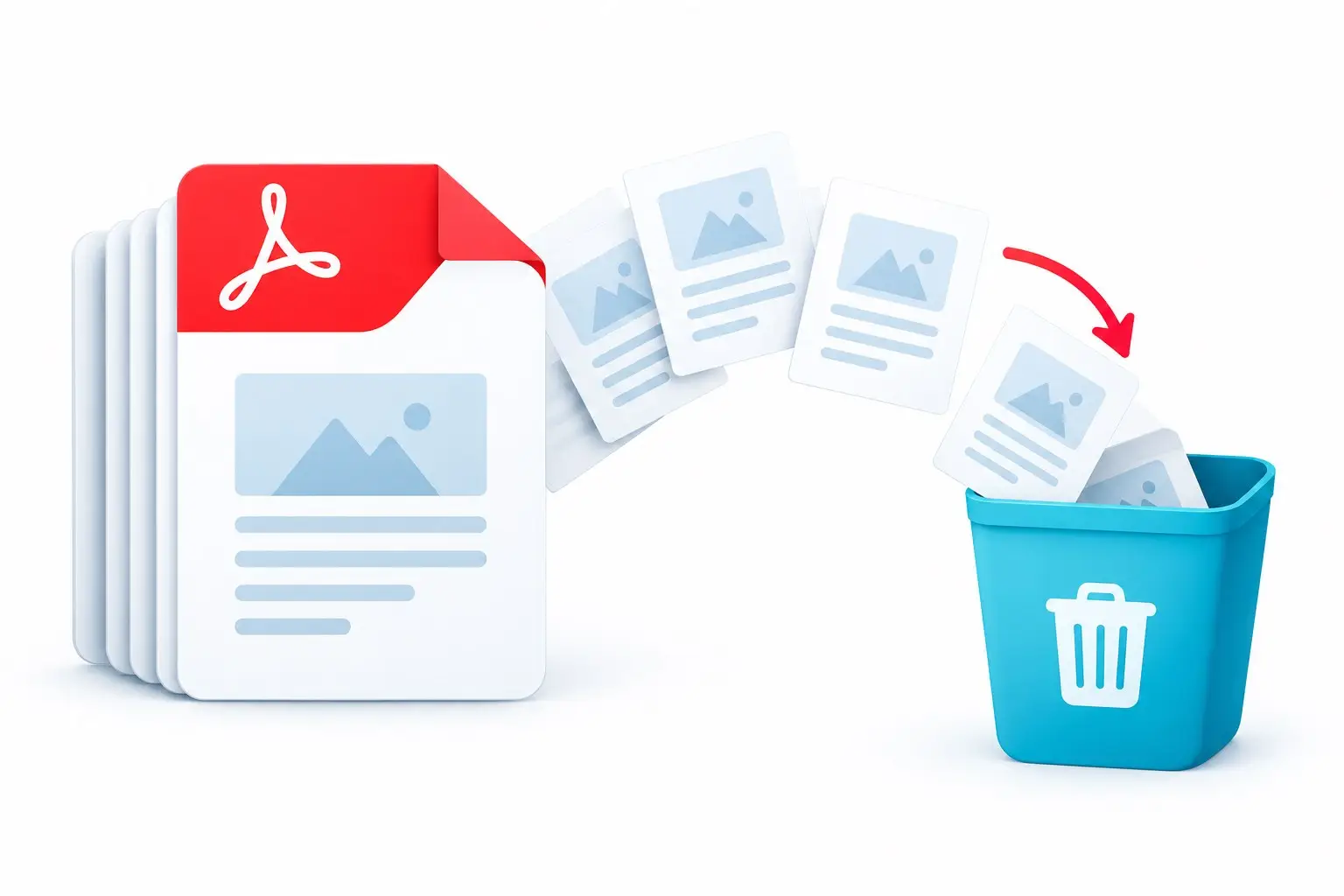
Need to delete a blank sheet, duplicate scan, or sensitive section from a PDF? You can remove selected pages and save a cleaned-up copy without rebuilding the document. Before you start, check the PDF viewer’s page count: printed page numbers may differ from the actual page positions, especially when the file has a cover or contents page.
How to remove pages from a PDF
- Open the Remove Pages from PDF tool.
- Select your PDF.
- Select the pages you want to delete.
- Apply the changes and create the new PDF.
- Download and review the final document.
Delete one page from a PDF (remove a single page)
For a single-page deletion, compare the thumbnail or page preview with the page number before confirming. Printed page numbers can differ from the PDF viewer’s count, especially when a file includes a cover, table of contents, or unnumbered appendices.
If only one page is unnecessary, select that page and remove it. Check the page numbers before saving because the numbering can change after deletion.
Remove multiple pages from a PDF
For a long PDF, remove several pages in one workflow. This is useful for deleting appendices, duplicate scans, blank sheets, or confidential sections before sharing.
Remove blank pages or an extra page at the end of a PDF
To remove blank pages, look through the page previews, select the blank sheets, and delete them. To remove an extra page at the end, select only the last page. Zoom in on pages that look empty first, because a page that looks blank can still contain faint text, a scan mark, or a form field.
Other ways to delete pages from a PDF
- Chrome or Edge: open the PDF, choose Print, select Save as PDF, set Pages to a custom range that leaves out the pages you want to delete (for example 1–4, 6–10), and save the new file.
- Mac Preview: open the PDF, show the page thumbnails, select the page, press Delete, and save the file.
Menus vary by version, so check the saved copy to confirm the right pages were removed.
Can you remove pages without Adobe Acrobat?
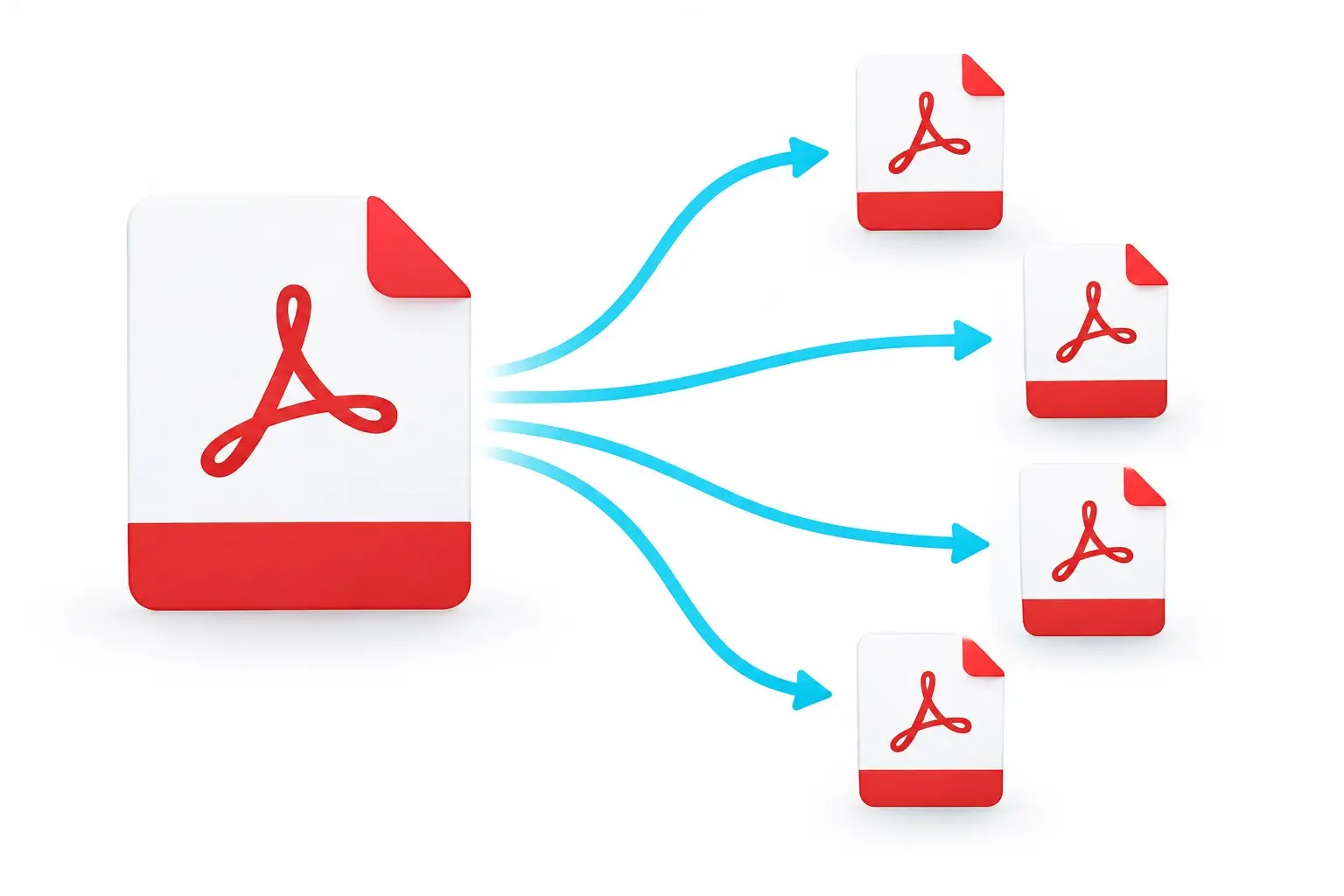
Yes. A browser-based PDF editor can remove pages without desktop software. This is useful when you need a quick PDF cleanup on a computer, tablet, or other supported device. If you need to reorganize the remaining pages afterward, see how to split a PDF or extract specific PDF pages.
What to check after deleting PDF pages
- Make sure the correct pages were deleted.
- Check that the remaining page order is correct.
- Open important links and form fields.
- Confirm bookmarks still point to the intended sections.
- Keep the original until the cleaned copy is verified.
Frequently asked questions
How do I delete pages from a PDF for free?
Open the Remove Pages from PDF tool, select your PDF, choose the pages to delete, create the new PDF, and download it. Processing happens locally in your browser.
Can I delete just one page from a PDF?
Yes. Select that single page, remove it, and check the page numbers in the saved copy, because the numbering can shift after deletion.
How do I remove an extra page or empty pages in a PDF?
Select the extra or blank pages in the page previews and delete them. Zoom in first to make sure they are really empty.
Is my PDF uploaded when I remove pages?
No. Processing happens locally in your browser, and no file upload is required.
Can I remove blank pages from a PDF?
Yes. Select the blank pages and delete them from the document.
Does deleting a PDF page reduce file size?
It can, especially when the removed pages contain large images or scans, although the exact reduction depends on the document.
Will deleting a PDF page change the page numbers?
The PDF viewer’s page count and printed page numbers may no longer match after you delete a page. Check the remaining pages and update printed numbering if the document needs consistent pagination.
How do I delete pages from a PDF on a phone?
Open a page-removal tool in a mobile browser if it supports your device, select the pages to remove, and save the revised file. Reopen the downloaded PDF and confirm the correct pages were removed before sharing it.
Remove PDF pages for free
Use FreePDFTools to remove unwanted pages and save a cleaner PDF.
Explore Topics
Related Posts
—– END UNTRUSTED post content —–
Try the PDF tool from this guide
PDF Editor — use the free browser-based tool without leaving this site.