Need to do this yourself? PDF Editor is available directly in your browser.
Compare two PDF versions to find changed text, added pages, removed content, or layout differences quickly.
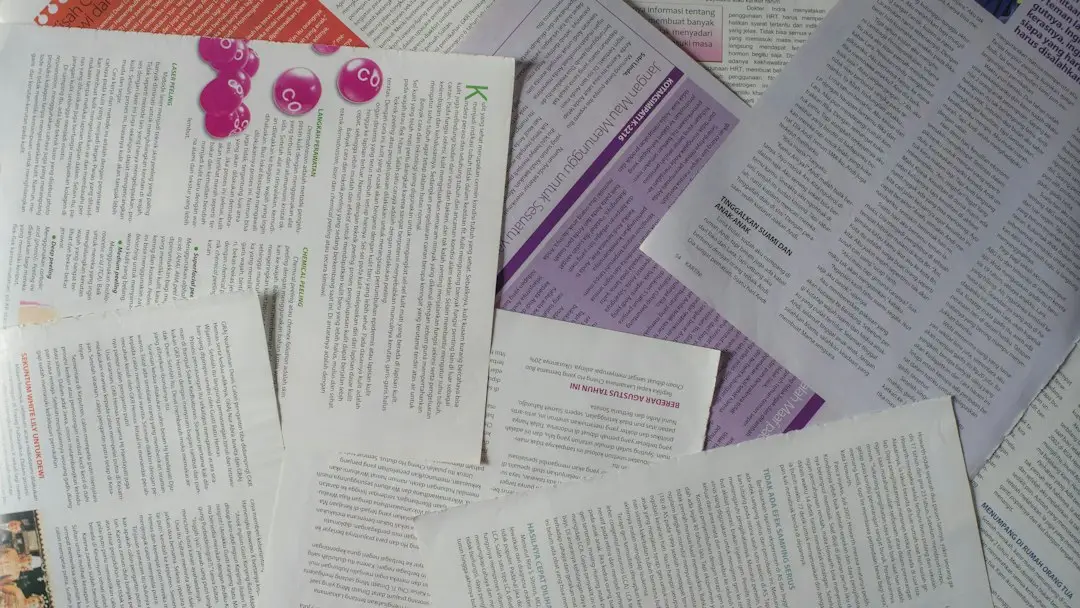
Comparing PDF versions is useful when a contract, report, invoice, policy, or design has been updated and you need to identify what changed. A PDF comparison workflow can help you review documents without manually switching between files. For important records, treat automated results as a first-pass check and verify material changes yourself.
How to compare two PDF files
- Open the Compare PDF tool.
- Select the original PDF.
- Select the revised PDF.
- Start the comparison.
- Review the detected differences and confirm important changes manually.
What can a PDF comparison detect?
Comparison is especially useful after a document has been converted or revised. For example, compare a revised contract with its original version, then use password protection if the final document contains sensitive information.
Depending on the comparison method, differences may include changed text, moved content, added or removed pages, image changes, or visual layout changes. Text-based comparison and visual comparison can reveal different kinds of changes.
Text comparison vs visual comparison
Text comparison is useful for changed wording, figures, and clauses. Visual comparison can be more helpful when the change involves layout, spacing, logos, images, or page placement. A tool may not detect every meaningful change in scanned pages, handwritten annotations, or documents whose text is stored as images.
For contracts, policies, financial reports, or other high-impact documents, treat automated results as a review aid—not a substitute for reading the relevant passages and confirming the final version.
Compare an original PDF with a revised PDF
Use the older file as the reference and the newer file as the revision. Give both files clear names so you do not accidentally reverse the versions.
Why compare PDFs before sending a final version?
- Verify contract revisions.
- Check updated reports.
- Review corrected invoices.
- Confirm policy changes.
- Find accidental edits before publication.
Frequently asked questions
Can I compare two PDFs for free?
Yes. Browser-based comparison tools can help identify differences without requiring desktop PDF software.
Can PDF comparison detect visual changes?
Some tools compare rendered pages as well as text. Check the tool’s comparison method when visual accuracy matters.
Compare your PDF files
Use FreePDFTools Compare PDF to review two versions and spot differences.
Explore Topics
Try the PDF tool from this guide
PDF Editor — use the free browser-based tool without leaving this site.